
Email Integration
Overview:
The email integration feature allows users to create or update Lynx events and correspondence logs by forwarding emails to a configured Lynx mailbox or by including that mailbox in the cc or bcc line. Depending on the email content and matching logic, Lynx can either update an existing event or create a new one for review.
This article explains how email integration works, how events are created or updated, how created events are reviewed, and how contacts, attachments, failed emails, and customer-specific configuration notes may affect the process.
Steps:
User forwards an email to one of the email addresses listed above (depending on the asset) from the email address associated with their Lynx account. Alternatively, user CC or BCCs the email address on an email. Emails sent from addresses not associated with a Lynx account will be ignored.
The software checks for new emails every 5 minutes, and either creates a new event or updates an existing event and correspondence log records.
The users with review permissions are sent an email confirming that an event was updated or created with a link to review the event.
A correspondence log entry is created for the event for each forwarded email. The email integration uses AI to parse out each email in the chain as its own correspondence log. The email integration also uses AI to try and identify duplicate emails from the chain that have already been created as correspondence logs. Duplicates are identified based on sent date, subject, and the email body.
-
Email integration helps teams capture important communication without relying on manual copy-and-paste or separate tracking methods. By connecting email activity to Lynx events and correspondence logs, it helps preserve context, improve record accuracy, and reduce the risk of important messages being missed or stored outside the system.
It also supports faster follow-up by automatically creating or updating records based on incoming emails, which can improve visibility, consistency, and accountability across teams. When used correctly, email integration helps keep event history, attachments, contacts, and related communication organized in one place.
-
Email Integration:
A Lynx feature that creates or updates events and correspondence logs based on forwarded emails or emails sent to the configured integration mailbox.Correspondence Log:
A record created from an email that stores the email content and related communication details within Lynx.Event Number:
The Lynx event identifier that can be used in the email subject line to help the system match an email to an existing event.Email Chain ID:
An email thread identifier used by the integration to help determine whether an incoming email belongs to an existing event.Pending Email Review:
A status showing that an event created through email integration is awaiting user review.Review Permissions:
The permissions that allow a user to review events created or updated through email integration..eml File:
A file containing the full email body that is created and saved against the last correspondence log in the email chain.Failed Email:
An email that the integration could not process successfully, resulting in a failure notice being sent.Customization Notes:
Organization-specific notes or setup details related to how email integration is configured for that client.
-
The email integration can associate an incoming email with an existing event in two primary ways:
Event number in the subject line:
If the subject line includes an event number, such as E-#####, Lynx uses that event number to associate the email with the matching event.
Email chain ID:
Lynx can also use the email’s chain ID to recognize that the message belongs to an existing email thread and should be logged against the same event. This chain information may be lost in some forwarded emails.
If neither of those methods produces a match, Lynx compares the email subject, sent date, and email body to help determine whether a related event already exists.
-
If an incoming email does not match an existing event in Lynx, the system creates a new event. Lynx also generates an AI-based description from the email chain and places it in the event description field.
After the event is created, the description field does not continue updating as new correspondence logs are added. Newly created events may then need to be reviewed and confirmed by an authorized user, depending on the organization’s workflow.
-
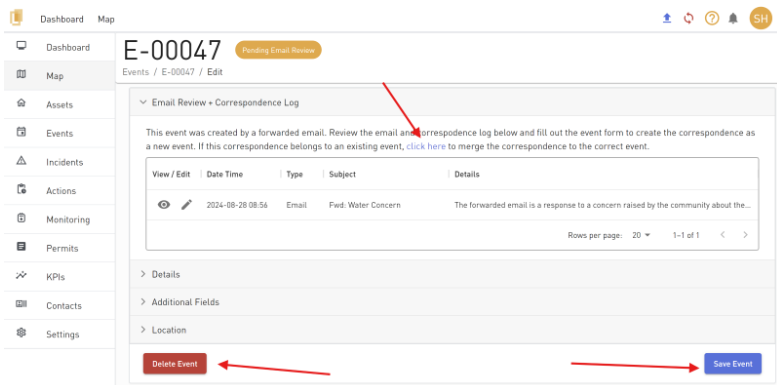
After receiving a notification that a new event is created, the user can navigate to the event details page and review the event. The correspondence can either be saved as a new event, merged into an existing event, or deleted at this stage.
-
The email integration parses the email for existing Lynx contacts and users and can associate them with both the correspondence log entry and the related event. If both a contact and a user are identified, contacts take precedence over users.
This helps preserve better relationship mapping within the event record and correspondence history.
-
The email integration ignores small embedded images by default to reduce the chance of saving items such as logos or signature graphics as attachments.
For other attachments that are not directly embedded in the email body, Lynx adds the attachment to the most recent correspondence log in the email chain. The system also attempts to identify duplicate documents by document name and ignore them within the same email chain.
For each email sent to the integration inbox, Lynx also creates an .eml file containing the full email body and saves it to the last correspondence log in the chain.
-
If the email integration fails, an email notification is sent to both the sender and Lynx. The sender should first review the original email and resend it.
If the email fails again, the user should contact Lynx and include any relevant details, such as the original subject line, intended mailbox, and approximate send time, to help with troubleshooting.